
Approved Responsive template examples
Quote template
Display options
The Quote template can be displayed:
- With or without an image.
- In the main area of your page or in the right-hand column. You must specify one or the other, or your quote won't display at all.
Practical restrictions
You can only use the Quote template once on a page – T4 will let you add more but they won't display properly.
You can still add several quotes to your page, but those later quotes must be created using other templates rather than the Quote template.
Example, set to appear in the main column with an image
You don't need to remember the following points – the alt text procedure will guide you step-by-step; they are listed simply to demonstrate a worked example.
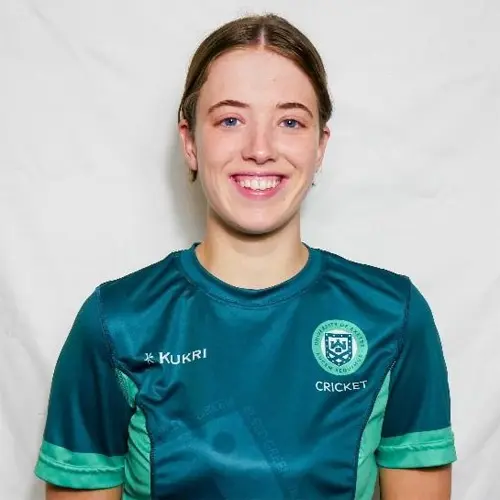
Alt text notes on this image
The alt text for this image reads: 'A student, wearing a green Kukri branded sports top with the University logo above the word 'cricket', smiles at the camera.'
Naming a quotee
- If the student had been named underneath the quote, then the alt text of their image would also need to include their name exactly as it's presented in the text on the page.
- Don't name a person in the alt text of their image if the page text doesn't do so.
Quotee images that contain text
- Although the text on the sports top may be too small to read on a desktop screen, this will not necessarily be the case on a tablet or mobile.
- If text in a quotee image is:
- Legible, without zooming in, when the image is viewed in its original uploaded size.
and - Relevant to the page content.
and - Not the main feature of the image (which it won't be – the quotee is the main feature)
- Legible, without zooming in, when the image is viewed in its original uploaded size.
- Incidental background text, and text that's illegible when viewing the original image, can be ignored. The top in this example includes the Latin motto on the logo, and the text 'bleed green' but both are illegible in the original image so they aren't included.